

这是一个创建于 2247 天前的主题,其中的信息可能已经有所发展或是发生改变。
双系统切换来切换去还是挺麻烦的。加上 Windows Terminal + PowerShell 的体验越来越好于是去年年底把 Arch Linux 彻底卸掉了。本身不是专业的,在终端里最多就是批处理一下文件,PowerShell 开箱即用虽然挺糟糕,但是调教一下还是够用了。
PSReadLine
PSReadLine 是 PowerShell 的官方模块,为 PowerShell 提供了缺失的交互特性。例如像 zsh/fish 那样的交互式的补全、语法高亮、emacs 按键模式等等。有了 PSReadLIne 之后的 PowerShell 才终于像点样了。
安装(详见官方项目 README):
Install-Module PSReadLine 安装之后,PSReadLine 的一些特性并不会自动启用,可以在 PowerShell 的 profile 配置文件里自己按需配置。但是自己从头搞毕竟很烦,直接白嫖官方提供的配置样例就可以,已经非常好用了。
posh-git 与 oh-my-posh
posh-git 可以为 PowerShell 提供 git 命令补全。oh-my-posh 可以美化 prompt,提供各种主题。直接把两个一起安上:
Install-Module posh-git -Scope CurrentUser Install-Module oh-my-posh -Scope CurrentUser 在 profile 配置文件中启用模块并选择 prompt 样式主题:
Import-Module posh-git Import-Module oh-my-posh Set-Theme Powerlevel10k-Lean Windows Terminal 美化
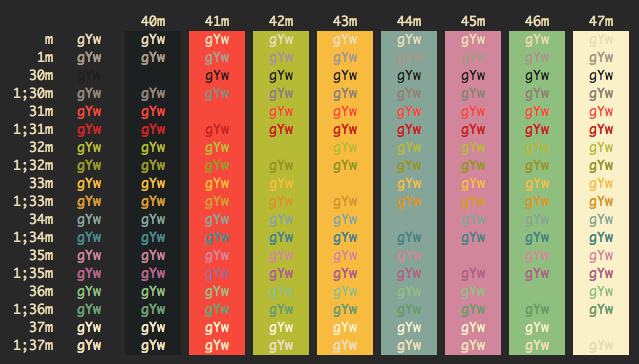
主要是配置字体和配色方案。配色方案可以在 iTerm2-Color-Schemes 这个项目中挑选。个人比较喜欢 Gruvbox Dark 配色。

在 Windows Terminal 配置文件中加入 Gruvbox Dark 配色方案。
"schemes": [ { "name": "Gruvbox Dark", "black": "#1e1e1e", "red": "#be0f17", "green": "#868715", "yellow": "#cc881a", "blue": "#377375", "purple": "#a04b73", "cyan": "#578e57", "white": "#978771", "brightBlack": "#7f7061", "brightRed": "#f73028", "brightGreen": "#aab01e", "brightYellow": "#f7b125", "brightBlue": "#719586", "brightPurple": "#c77089", "brightCyan": "#7db669", "brightWhite": "#e6d4a3", "background": "#1e1e1e", "foreground": "#e6d4a3" } ] 在 PowerShell 的 profile 部分选择 Gruvbox Dark 作为配色方案。同时做一些其他调整(因为 Windows Terminal 支持字体 ligature,所以选择了 Fira Code 字体):
{ // Make changes here to the powershell.exe profile "guid": "{61c54bbd-c2c6-5271-96e7-009a87ff44bf}", "name": "Windows PowerShell", "commandline": "powershell.exe", "hidden": false, "fontFace": "Fira Code", "fontSize": 11, "colorScheme": "Gruvbox Dark", "cursorShape": "vintage" } 
第 1 条附言 2020 年 3 月 1 日
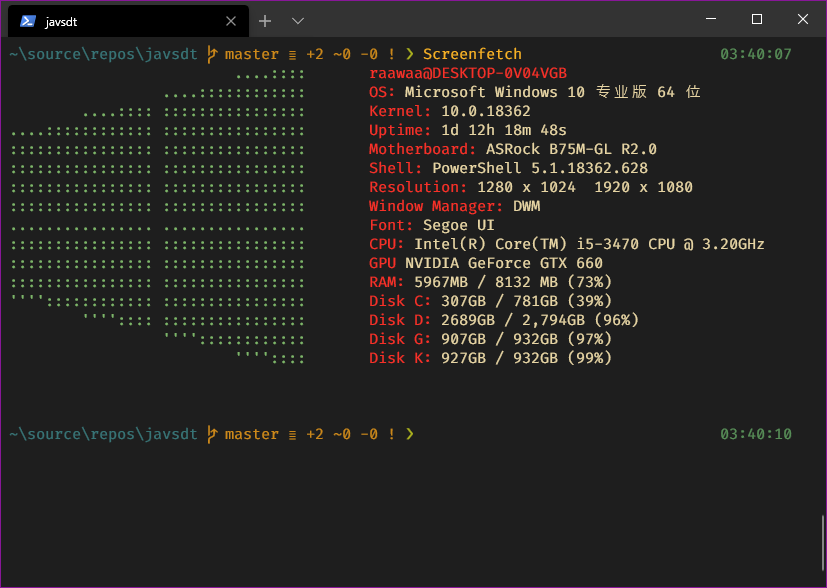
文章里的图片好像挂了。补充两张预览图。
22 条回复 2020-03-03 14:34:23 +08:00
 | 1 wzxlovesy 2020 年 3 月 1 日 via Android 图好像挂了? |
 | 2 leido 2020 年 3 月 1 日 via Android 感谢楼主分享,我是 win10 用 wsl 配合 ubuntu,安装了 oh my zsh,基本满足需求 |
 | 3 nightwitch 2020 年 3 月 1 日 不加 alias 的 powershell 命令又臭又长,不翻 msdn 根本记不住 |


 Select Language